How to compile Excel workbook to EXE file
Prerequisites
You need to have the Microsoft Windows 7 or higher as well as Microsoft Office 2007 SP3 or higher with the latest service pack and updates installed on your computer.
Please make sure that Microsoft Office Visual Basic for Application (VBA) component is selected in your MS Office installation. To verify that you need to open Microsoft Excel and click Alt+F11 key combination. If the VBA Project is opened that means you have Visual Basic for Application (VBA) in your Excel installation.
Before protect your workbook with XCell Compiler you need to enable “Trust access to the VBA project object model” MS Excel option via the following path:
Excel Options >> Trust center >> click button “Trust Center Settings…” >> Macro Settings >> enable check box “Trust access to the VBA project object model”
You need to perform this step only once, before the first compilation.

Steps
1. Download the DoneEx XCell Compiler and install it on your computer. Detailed instruction how to download and install the product you may find in video above.
2. Open your workbook by double clicking on it in the Windows Explorer. If it did not open then do the following:
Open Excel from Windows Start Menu shortcut and load your Excel spreadsheet by using the Excel File Open menu, or just Drag-and-Drop your workbook on to the Excel window.
3. Find DoneEx menu at Excel main menu.
Click DoneEx >> XCell Compiler >> Compile

4. Fill out the compilation form with your data and preferred options, then click on the “Compile” button.
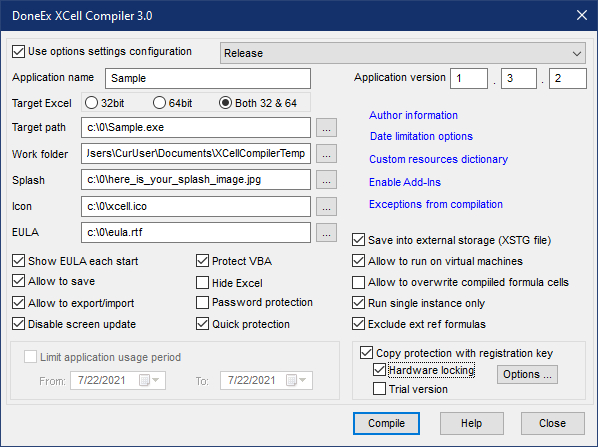
5. When compilation is completed, close Excel, and run the EXE file. You may find the compiled EXE file at the location that you have chosen in the “Target Path” field on the compilation form.
The workbook is secured now. You can send the compiled application to your client with peace of mind.
Compile Excel workbook to EXE from command line
XCell Compiler allows you to run compilation from command line by using XCMD.EXE tool on a computer with the product registered with Business Pro license.
To use XCMD.EXE tool you need to prepare .xcfg configuration file for the workbook you are going to compile. To do that you need to compile your workbook from Excel DoneEx menu item with “Options Settings configuration” option enabled.
Please see details about Options Settings Configuration.
When .xcfg file for your workbook is ready you need to copy XCMD.EXE file from the DoneEx XCell Compiler installation folder to the folder where you workbook and .xcfg file are located.
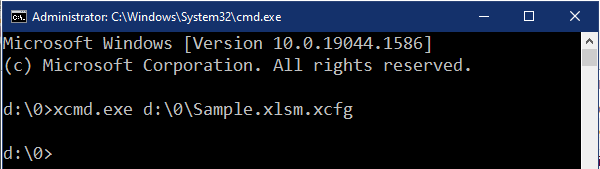
Usage of XCMD.EXE tool:
XCMD.EXE <full name of .xcfg file>
See also: