How to Export/Import Compiled Workbook Changed Data
Once you compile your Excel file, it creates an application (executable – EXE File) with the possibility to export/import changed workbook data for the application.
EXE applications compiled with the “Allow Export/Import” option turned on are the only ones permitted to export and import changed workbook data.
For example, when the compiled application ‘Sample.exe’ runs, the following menu appears in Excel:
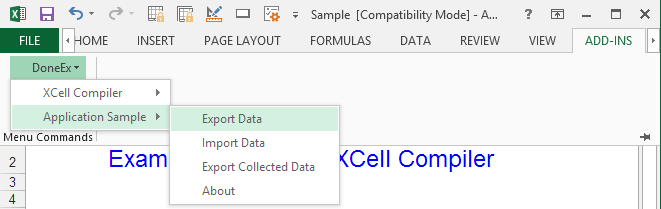
Please note that the “Export Data” item is disabled. It will activate as soon as any data changes on spreadsheet because the option allows to export only the changed data.
Export Workbook Data
- Export Data By clicking on the ‘Export Data’ menu of the workbook which contains the data you wish to export. A Windows standard save dialog will appear. You have to type a file name in order to export. The export file will be in binary format with the .dat extension. The file only contains the data manually modified cell data or VBA code created during the current work session. For the EXE application, the export option only works for the changed data. If you want to export the non-changed data, just copy/cut and paste exactly at the same place for that data.
- Export Collected Data: This item works same way as Export Data, except that it exports all of the collected changes since the beginning of the use of the EXE file.
If during this time a cell changes more than once, then the process exports only the latest value.
Importing Workbook Data
Import Data by clicking the ‘Import Data’ menu. Once you do so, the following dialog will appear:
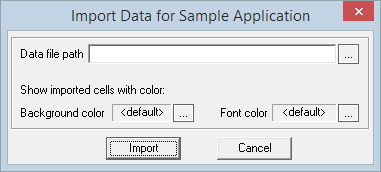
Select the file you want to import into your application and it will import the values into cells. You may choose a different background or font color for the values before importing them.
You can import data into the original xls file through the Excel main menu >> DoneEx >> XCell Compiler >> Load external data.
In this case the process will import the data into an active workbook.
Important note: the imported data will overwrite any data that is already present in their cells.
You can import data into the EXE application by going to the Excel main menu >> DoneEx >> Application name >> Import Data.