Excel workbook copy protection
When licensing and distributing a spreadsheet to a customer, you are responsible for implementing Excel workbook copy protection to prevent unauthorized copying and usage of your intellectual property.
The term “copy protection” does not mean that a protected Excel file cannot be copied from one computer to another.
Workbook copy protection means that author of the protected workbook will be able to give permission to use the application on a specific computer. Without such permission, the protected workbook will not start.
The first, and most important, prerequisite for Excel spreadsheet copy protection is the inaccessibility of cell formulas in the spreadsheet. The compilation of all of the cell formulas in the workbook into binary code and their removal from the spreadsheet’s cells ensures this.
In the DoneEx XCell Compiler, the Excel workbook copy protection is implemented by tying the compiled workbook (EXE file) to the registration key with the information about the target computer. It checks if the customer has enough permissions to use the workbook on the computer when compiled workbook is started.
The registration/activation key (regkey) is an encrypted file which contains all of the registration information about the registered customer, company, and the target computer where it allows the compiled EXE to start.
The registration key uses a computer id number to identify the target computer. The Computer ID is created from the unique hardware and software information of the computer, and is then used to identify that computer. It is impossible for there to be 2 identical computer IDs for 2 different computers.
How the workbook copy protection works
1. You compile the EXE file with the hardware locking option selected, then put it on web for downloading or send this EXE to your client some other way.
2. Your client tries to start this EXE file, sees the window that contains only his computer id number and sends this number to you.
3. You generate the registration key using your client’s registration info (name, email, etc) along with their computer id number, and send it to your client (after they made purchase, for example).
4. Your client copies the registration key into the same folder as where the EXE is located.
5. The EXE starts only on that computer.
Main stages of the workbook copy protection process
Step 1. Workbook compilation with copy protection options
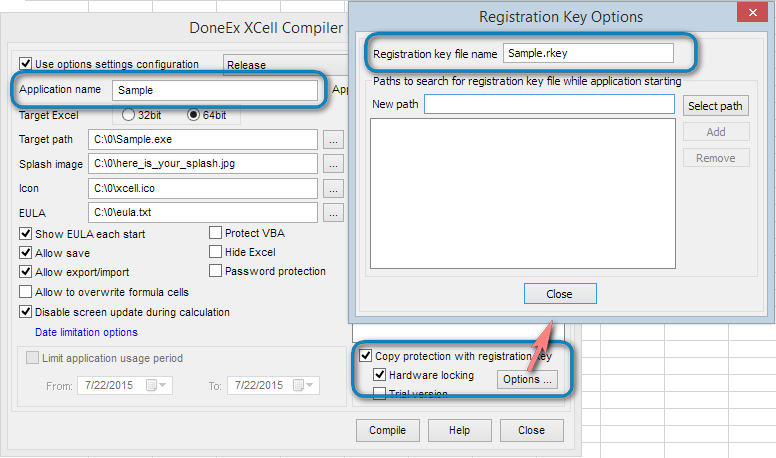
The above image marks the compilation options that are relevant to copy protection.
You should enable the Hardware locking option for this process.
The Application name creates an internal link between the compiled EXE and the registration key file (regkey).
The compiled EXE file will search for the regkey file by the name which you have entered in the ‘Registration key file name’ field.
Step 2. Request the customer’s computer ID
When your customer receives the compiled EXE for the first time (without a regkey), they cannot run the application.
This is because when they try to start the EXE, they will only be able to see the following message:
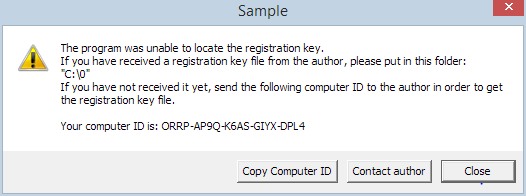 Your customer will need to copy the computer id and email it to the author.
Step 3. Creation of the registration/activation key.
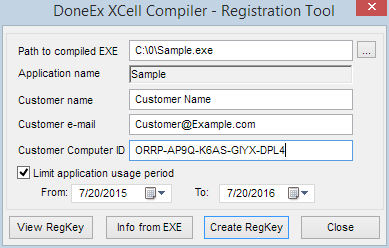
After you have created the registration key file, you need to send it to your customer. The customer then copies the regkey file into the folder with the protected workbook and, in doing so, unlocks the workbook. The customer can now use the protected workbook.
Video tutorial how to apply copy protection to Excel workbook
See Also
How to use Registration Key Tool
Bulk Registration Key Generator
Excel Workbook Licensing